
Zoho Commerce ഉപയോഗിച്ച് ഒരു E-Commerce Website എങ്ങനെ നിർമ്മിക്കാം?
Complete Step-by-Step Guide in Malayalam
എന്താണ് Zoho Commerce?
സ്വന്തമായി ഒരു online store തുടങ്ങാൻ ആഗ്രഹമുണ്ടോ? Coding അറിയില്ലെങ്കിലും പ്രശ്നമില്ല. Products ചേർക്കാനും website-ന്റെ രൂപം മാറ്റാനും orders, payments, shipping എന്നിവ കൈകാര്യം ചെയ്യാനും എല്ലാം ഒരിടത്ത് സാധിക്കുന്ന ഒരു platform ആണ് Zoho Commerce.
ഈ ലേഖനത്തിൽ store തുടങ്ങുന്നത് മുതൽ website publish ചെയ്യുന്നത് വരെയുള്ള ഘട്ടങ്ങൾ ലളിതമായി നോക്കാം.
തുടങ്ങുന്നതിന് മുമ്പ് തയ്യാറാക്കി വെക്കേണ്ടത്
മുൻകൂട്ടി ഇവ ഒരുക്കിയാൽ പണി വളരെ എളുപ്പമാകും:
- Business name-ഉം logo-യും
- Products-ന്റെ വ്യക്തമായ photos
- ഓരോ product-ന്റെയും പേര്, വില, വിവരണം, stock എണ്ണം
- നിങ്ങളുടെ business-നെ കുറിച്ചുള്ള ചെറിയ കഥ (About text)
- WhatsApp number (country code സഹിതം), email, social media links
Step 1 — Zoho Commerce Store Setup
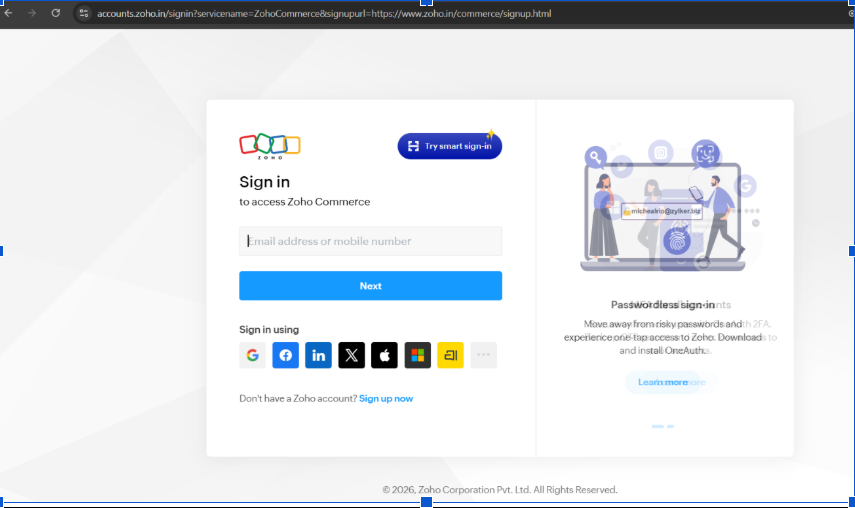
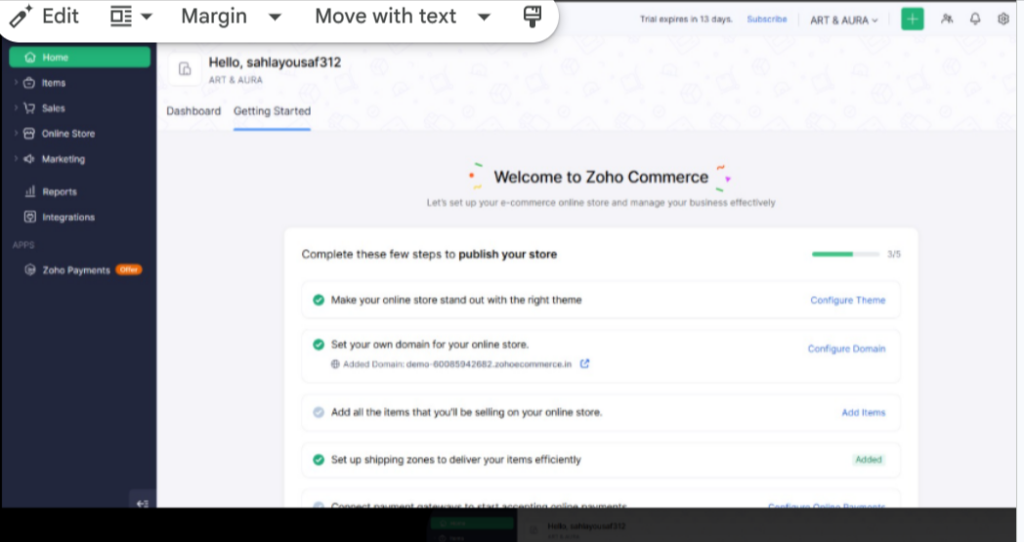
Zoho Commerce account-ൽ login ചെയ്ത് പുതിയ store create ചെയ്യുക. Store name, business information, currency തുടങ്ങിയ അടിസ്ഥാന വിവരങ്ങൾ configure ചെയ്യുക.
Store create ചെയ്ത ശേഷം dashboard-ൽ നിന്ന് products, orders, customers, online store തുടങ്ങിയ പ്രധാന sections access ചെയ്യാം.
Step 2 — Theme തിരഞ്ഞെടുക്കുക
Website-ന്റെ overall appearance തീരുമാനിക്കുന്ന പ്രധാന ഘടകമാണ് Theme.
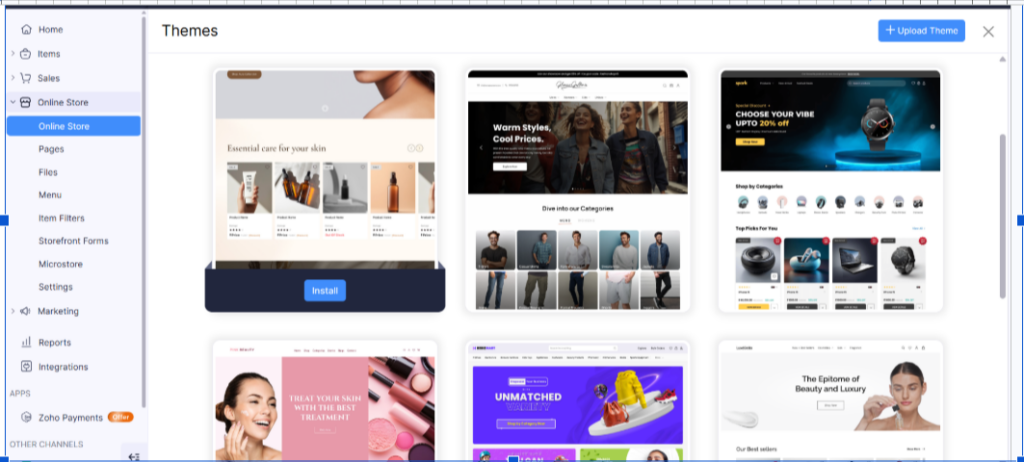
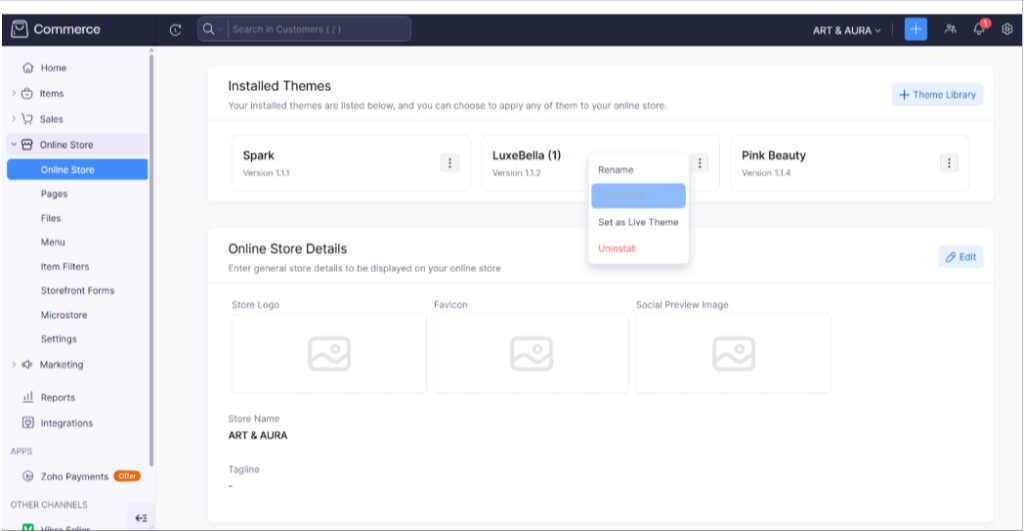
Online Store → Themes / Theme Library എന്ന ഭാഗത്തേക്ക് പോയി business type-ന് അനുയോജ്യമായ theme തിരഞ്ഞെടുക്കുക.
Theme തിരഞ്ഞെടുക്കുമ്പോൾ design മാത്രം നോക്കാതെ mobile responsiveness, product layout, navigation, customization options എന്നിവയും പരിഗണിക്കുക.
Step 3 — Theme Customize ചെയ്യുക
Theme select ചെയ്ത ശേഷം Customize button ഉപയോഗിച്ച് Storefront Editor തുറക്കുക.
ഇവിടെ sections add/remove ചെയ്യാനും content, colors, spacing, images, typography തുടങ്ങിയവ customize ചെയ്യാനും കഴിയും.
Editing സമയത്ത് changes save ചെയ്യുക. Website മുഴുവനായി complete ആകുന്നതിന് മുമ്പ് publish ചെയ്യേണ്ടതില്ല.
Step 4 — Header & Navigation Menu
Header website navigation-ന്റെ പ്രധാന ഭാഗമാണ്. Logo, menu links, cart തുടങ്ങിയവ ഇവിടെ ക്രമീകരിക്കാം.
Zoho Commerce Theme Editor-ൽ Header section select ചെയ്ത് Properties / customization options ഉപയോഗിച്ച് header edit ചെയ്യാം.
Business requirements അനുസരിച്ച് menu structure തയ്യാറാക്കാം. ഉദാഹരണത്തിന്:
HOME | ABOUT | COLLECTION | GALLERY | CUSTOM ORDERS | CONTACT | CART
Header customize ചെയ്യുമ്പോൾ സാധാരണയായി:
- Logo add / change ചെയ്യുക
- Navigation menu items ക്രമീകരിക്കുക
- Menu links ആവശ്യമായ pages-ലേക്ക് connect ചെയ്യുക
- Header layout, alignment, spacing എന്നിവ adjust ചെയ്യുക
- Colours, fonts തുടങ്ങിയ design settings customize ചെയ്യുക
- Cart icon ശരിയായി കാണുന്നുണ്ടെന്ന് പരിശോധിക്കുക
- Mobile navigation പരിശോധിക്കുക
Navigation simple ആയിരിക്കണം. Customer-ന് products, collections, contact page തുടങ്ങിയ പ്രധാന ഭാഗങ്ങൾ എളുപ്പത്തിൽ കണ്ടെത്താൻ കഴിയണം.
Desktop header complete ചെയ്ത ശേഷം mobile preview–ലും പരിശോധിക്കുക. Mobile version-ൽ navigation സാധാരണയായി compact hamburger menu ആയി കാണാം.
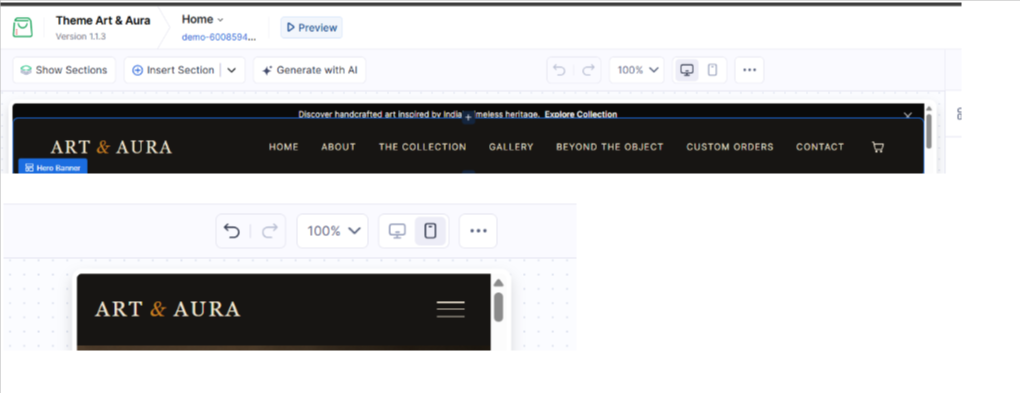
Lorem ipsum dolor sit amet, consectetur adipiscing elit. Ut elit tellus, luctus nec ullamcorper mattis, pulvinar dapibus leo.
Step 5 — Hero Banner
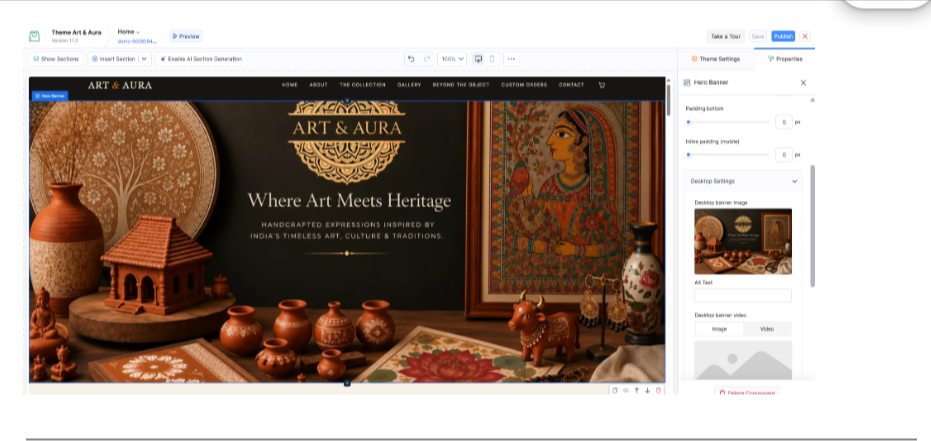
Homepage-ൽ visitor ആദ്യം ശ്രദ്ധിക്കുന്ന പ്രധാന visual area ആണ് Hero Banner.SS
ഇവിടെ സാധാരണയായി:
- High-quality banner image
- Main heading
- Short supporting text
- Call-to-action button
എന്നിവ നൽകാം.
CTA ആയി Shop Now, Explore Collection, Discover More തുടങ്ങിയവ ഉപയോഗിക്കാം.
Customizing the homepage hero banner
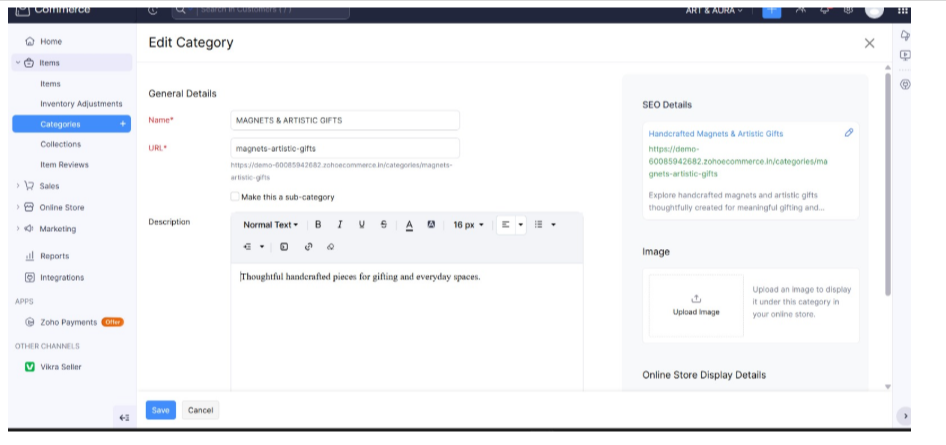
Step 6 — Product Categories Create ചെയ്യുക
Products കൂടുതലാകുമ്പോൾ അവ categories ആയി organize ചെയ്യുന്നത് customer navigation എളുപ്പമാക്കും.
ഉദാഹരണത്തിന്:
Crafts & Hobbies → DIY Kits
അല്ലെങ്കിൽ business type അനുസരിച്ച്:
Home Decor | Gifts | Handmade Products | Accessories
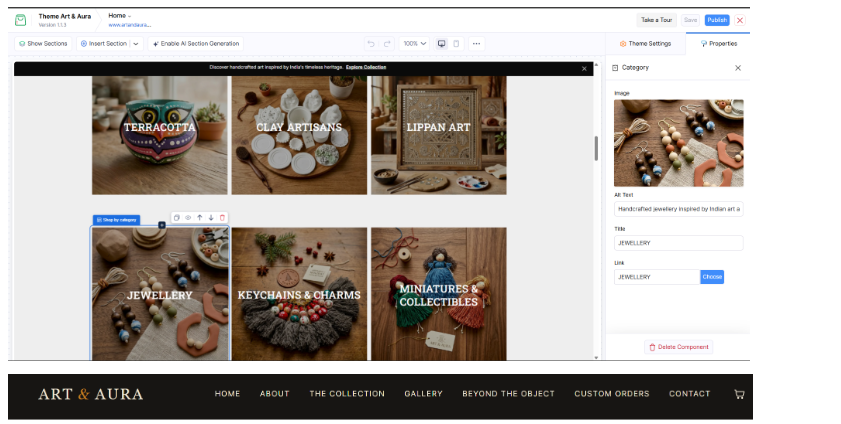
ഓരോ category-ക്കും title, description, image എന്നിവ നൽകാം.
Creating and organizing product categories
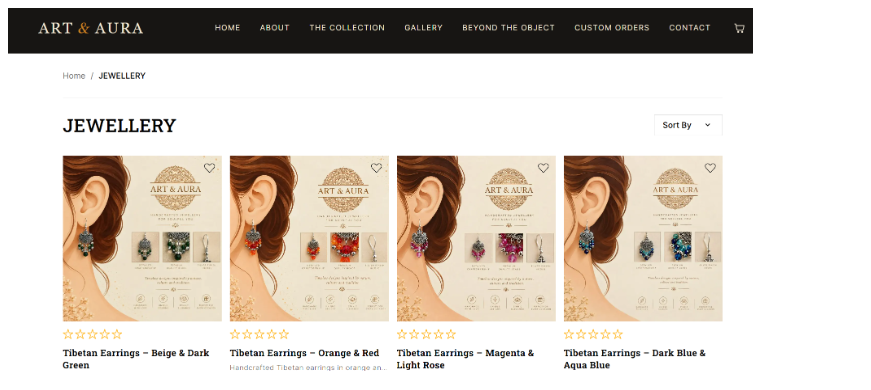
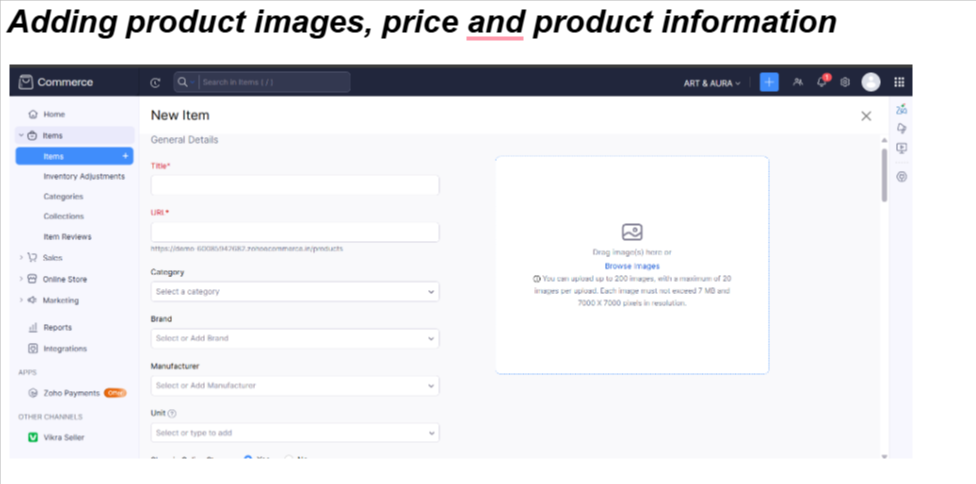
Products: Dashboard-ലെ Items section-ൽ ഓരോ product-ഉം ചേർക്കുക. ഇവ നൽകണം:
- Product name, images, price
- ചെറിയ വിവരണവും വിശദമായ വിവരണവും
- Category, SKU (product-ന്റെ ID code), stock
- Size, material, variants (ഉണ്ടെങ്കിൽ)
വ്യക്തമായ, നല്ല photos online store-ൽ വളരെ പ്രധാനമാണ്.
Step 7 — Products Add ചെയ്യുക
Products section-ൽ ഓരോ product-ന്റെയും complete information നൽകുക.
പ്രധാനമായും:
- Product Name
- Product Images
- Price
- Short Description
- Detailed Description
- Category
- SKU
- Stock
- Size / Dimensions
- Material
- Variants, if applicable
High-quality product images ഉപയോഗിക്കുന്നത് online store-ൽ വളരെ പ്രധാനമാണ്.
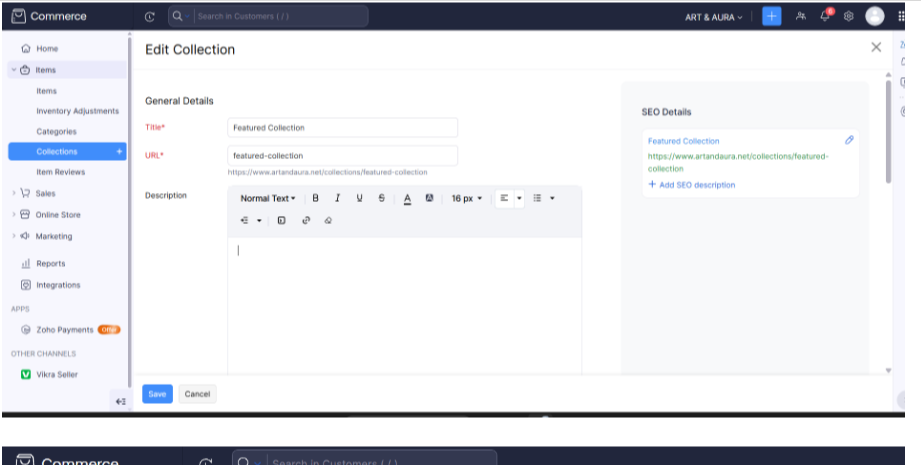
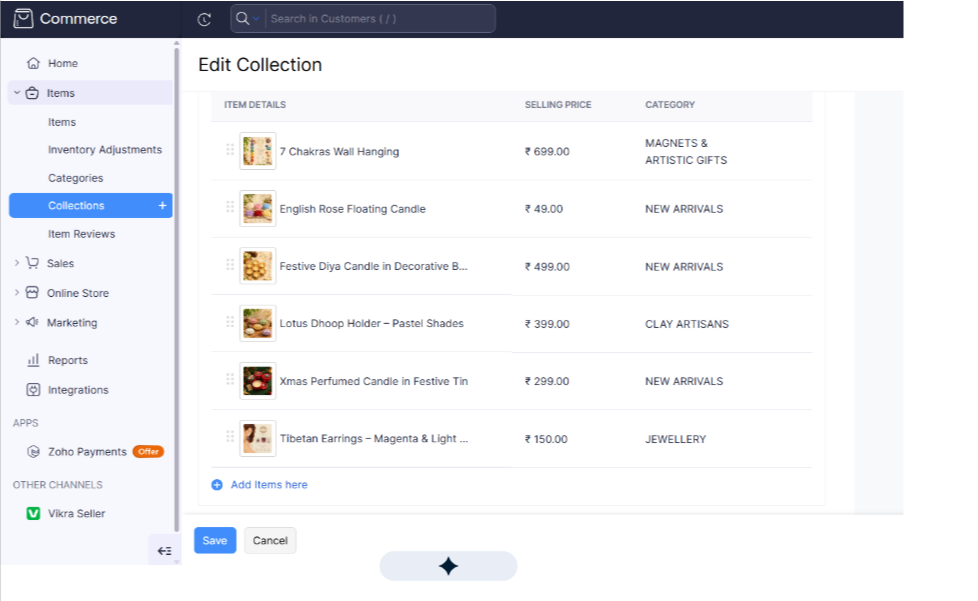
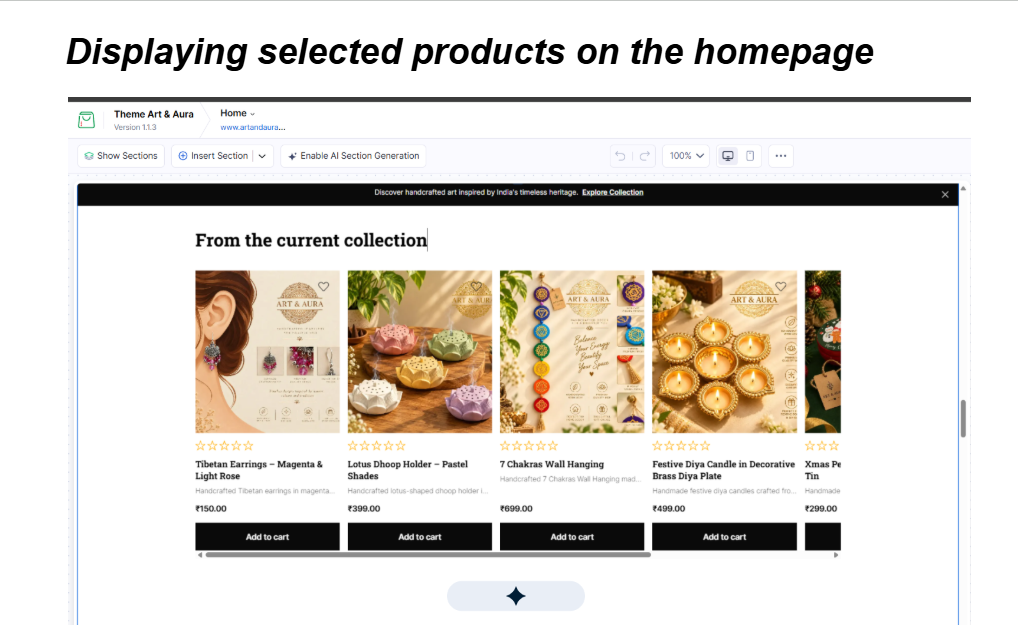
Step 8 — Product Collections Homepage-ൽ കാണിക്കുക
Homepage-ൽ selected products highlight ചെയ്യാൻ product sections ഉപയോഗിക്കാം.
ഉദാഹരണത്തിന്:
Featured Products
New Arrivals
Current Collection
Best Sellers
Product card-ൽ സാധ്യമെങ്കിൽ image, product name, price, wishlist, quick view, cart functionality എന്നിവ clear ആയി കാണിക്കുക.
Step 9 — About Us Section
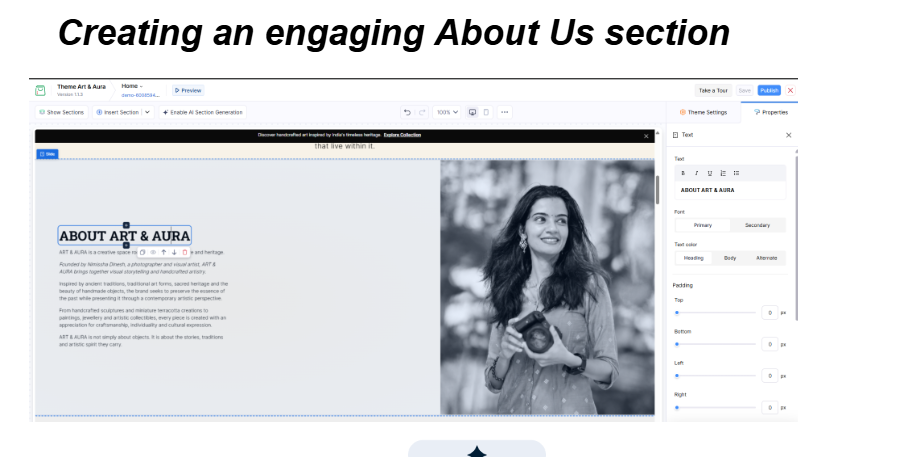
About section business-ന്റെ identityയും storyയും customers-ന് പരിചയപ്പെടുത്താനുള്ള സ്ഥലമാണ്.
ഇവിടെ:
- Business story
- Mission
- Inspiration
- Founder information
- Brand values
എന്നിവ നൽകാം.
വളരെ നീളമുള്ള text-ന് പകരം readable paragraphs ഉപയോഗിക്കുന്നത് നല്ലതാണ്.
Step 10 — Gallery Section
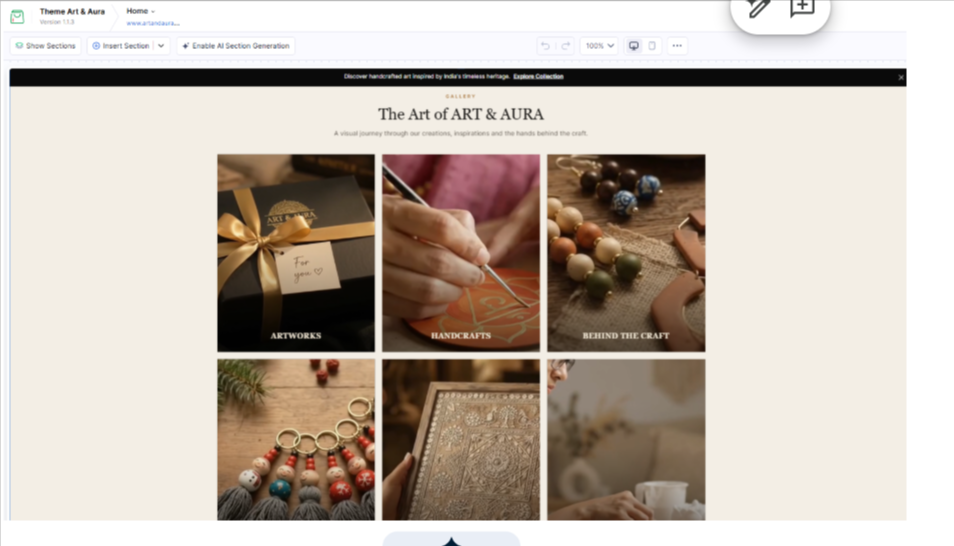
Gallery ഉപയോഗിച്ച് products, completed projects, lifestyle photography, behind-the-scenes visuals തുടങ്ങിയവ അവതരിപ്പിക്കാം.
Images consistent quality-ലും aspect ratio-യിലും നൽകുന്നത് website-ന് professional appearance നൽകും.
Creating a visual gallery for the online store
Step 11— Custom Orders Section
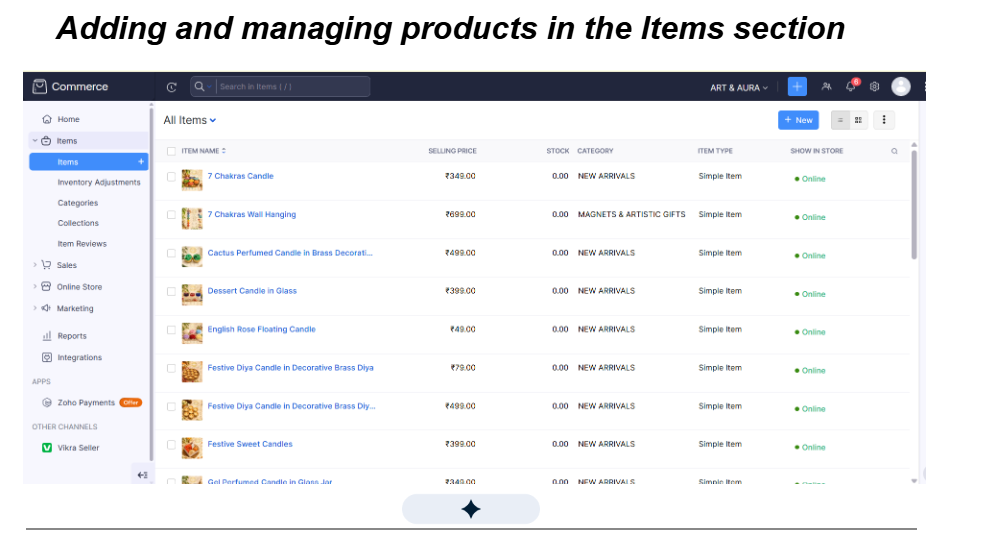
Zoho Commerce-ലെ Items section-ൽ product details add ചെയ്ത് online store-ൽ ലഭ്യമാക്കിയാൽ, ആ products website-ലെ ബന്ധപ്പെട്ട product section-ൽ display ചെയ്യാം.
Product name, image, selling price, category തുടങ്ങിയ വിവരങ്ങൾ Items section-ൽ manage ചെയ്യാം. Website-ൽ product card ആയി image, product name, price, rating, Add to Cart തുടങ്ങിയ options theme settings അനുസരിച്ച് കാണാം.
അതുകൊണ്ട് ഓരോ product-വും website editor-ൽ പ്രത്യേകം manually create ചെയ്യേണ്ടതില്ല. Products Items section-ൽ add ചെയ്ത് ശരിയായ category/collection-ൽ organize ചെയ്താൽ storefront-ൽ അവ അവതരിപ്പിക്കാം.
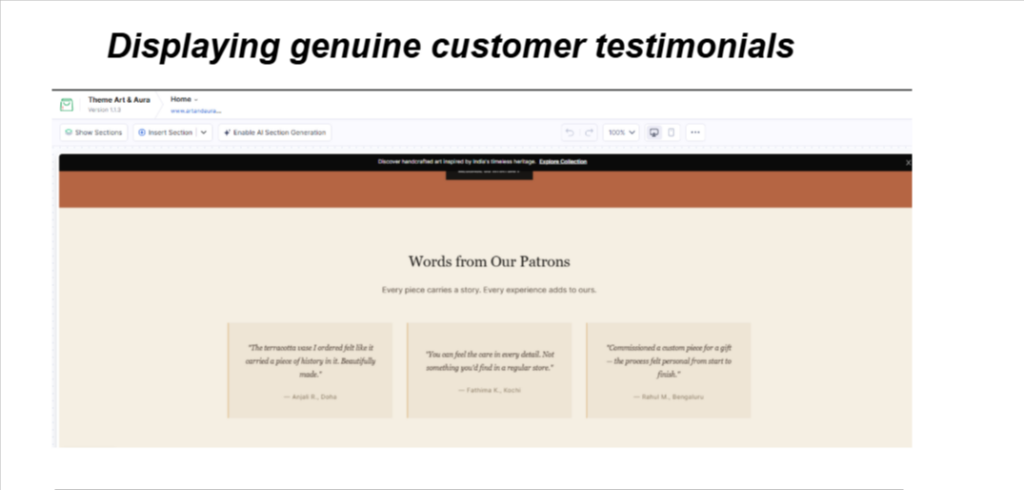
Step 12— Testimonials
Customer testimonials social proof നൽകാൻ സഹായിക്കും.
Section-ൽ genuine customer feedback, customer name, location തുടങ്ങിയവ ആവശ്യത്തിന് നൽകാം.
Fake reviews ഉപയോഗിക്കുന്നതിന് പകരം actual customer reviews ലഭിച്ച ശേഷം publish ചെയ്യുന്നതാണ് ഉചിതം.
Step 13— Newsletter / Email Subscription
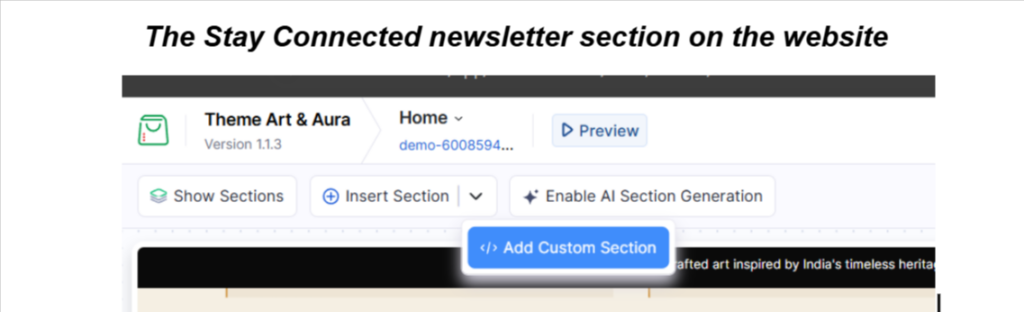
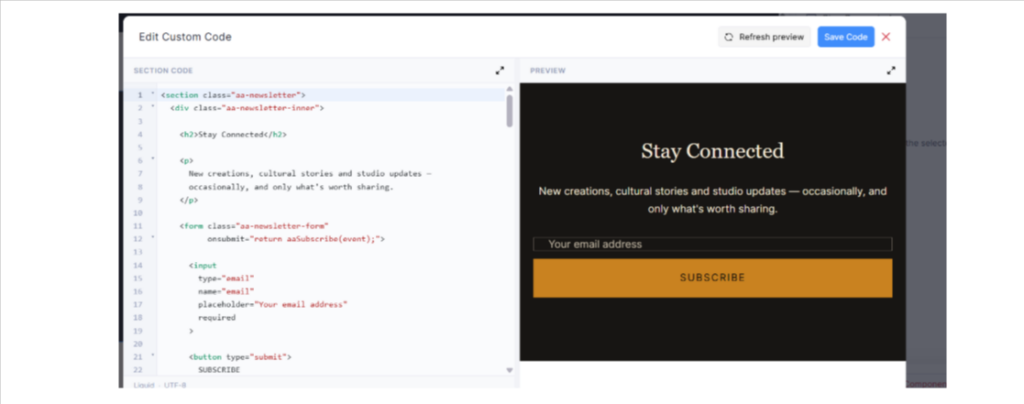
Visitors-ന് email നൽകി subscribe ചെയ്യാനുള്ള ‘Stay Connected’ section ആണിത്. ഇതിന്റെ code സ്വയം എഴുതേണ്ടതില്ല. താഴെയുള്ള AI prompt ഏതെങ്കിലും AI tool-ൽ (Claude, ChatGPT തുടങ്ങിയവ) paste ചെയ്താൽ copy-paste ചെയ്യാവുന്ന code ലഭിക്കും. ആ code Zoho-യിലെ Add Custom Section വഴി ചേർക്കാം.
AI Prompt — Generate a Newsletter / Email Subscription Section
Create a clean, professional, reusable and fully responsive Newsletter / Email Subscription section for a Zoho Commerce website using HTML, CSS, JavaScript and Zoho Liquid schema.
Requirements:
1. The section must be generic and reusable for any business or e-commerce website. Do not use any real business name, brand name, logo, email address or brand-specific class names.
2. Create a centered newsletter section containing:
– Heading: “Stay Connected”
– Short supporting text
– Email address input field
– “SUBSCRIBE” button
– A small message area for subscription feedback
3. Use generic supporting text such as:
“Subscribe to receive new products, offers, news and updates.”
4. The email field must:
– Use input type=”email”
– Be required
– Include the placeholder “Your email address”
5. When the user clicks SUBSCRIBE:
– Prevent the page from reloading
– Validate that an email address has been entered
– Display a simple success message such as:
“Thank you for subscribing!”
– Reset the form after successful submission
6. Do not connect the form to any real email marketing service, database or external API. Keep the code suitable as a front-end example that can later be connected to a newsletter service.
7. Make the design easy to customize for different businesses.
8. Do not use fixed brand-specific colors. Define easy-to-edit CSS variables for:
– Background color
– Heading color
– Text color
– Input border color
– Button background
– Button text
– Hover color
9. Avoid brand-specific prefixes in CSS class names. Use generic class names such as:
newsletter-section
newsletter-container
newsletter-form
newsletter-message
10. Desktop layout:
– Center the content
– Display the email field and Subscribe button in one row
– Keep the section spacious and professional
11. Mobile layout:
– Use a breakpoint of 767px
– Stack the email field and Subscribe button vertically
– Make both elements full width
– Maintain comfortable spacing and readable typography
12. Add suitable hover and focus states for the input and button.
13. Use accessible HTML and include an appropriate label or aria-label for the email input.
14. Include a valid Zoho Commerce Liquid schema so the section can be added through Add Custom Section.
Use:
available_in templates: [“index”, “page”]
15. Return one complete copy-paste-ready code block containing:
– HTML
– <style>
– <script>
– {% schema %}
16. Do not include explanations outside the code block.
The final result should be clean, minimal, responsive and suitable for different businesses and e-commerce stores.
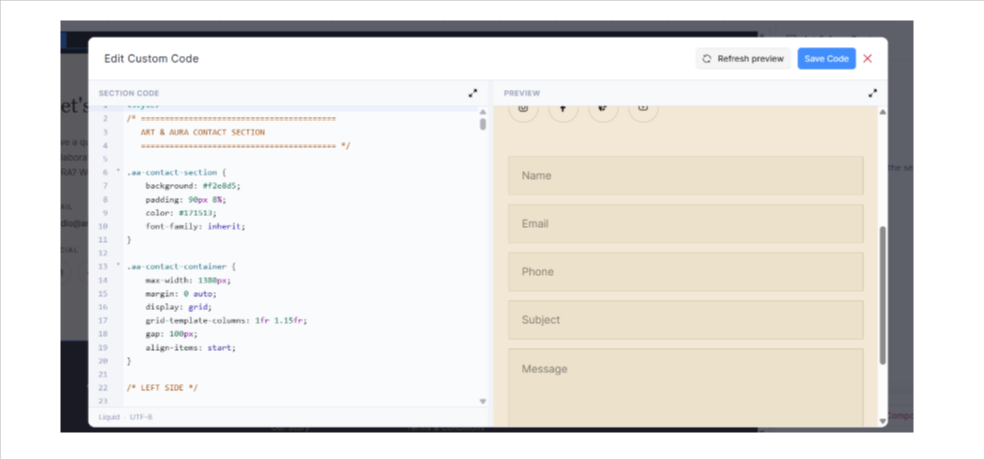
Step 14— Contact Form & WhatsApp
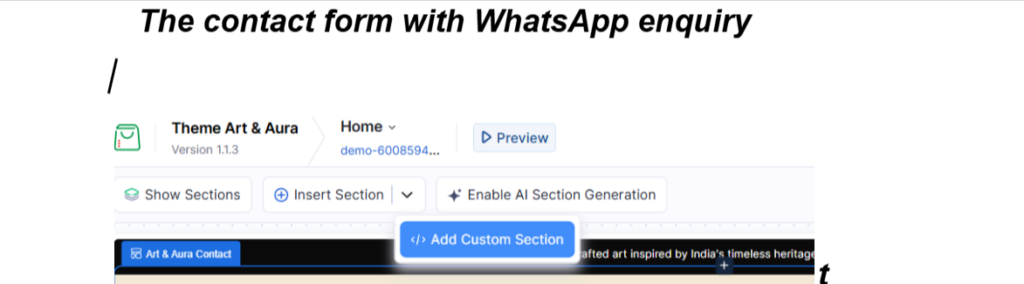
Customer enquiries സ്വീകരിക്കാൻ ഒരു clear and responsive Contact Form website-ൽ ഉൾപ്പെടുത്താം. ഓരോ website-നും form manually design ചെയ്യുന്നതിനുപകരം, താഴെ നൽകിയിരിക്കുന്ന AI prompt ഉപയോഗിച്ച് business requirements അനുസരിച്ച് customize ചെയ്യാവുന്ന contact form generate ചെയ്യാം.
Form-ൽ Name, Email, Phone, Subject, Message തുടങ്ങിയ fields ഉൾപ്പെടുത്താനും, ആവശ്യത്തിന് WhatsApp enquiry functionality ചേർക്കാനും prompt customize ചെയ്യാം.
AI Prompt — Generate a Contact & WhatsApp Form
Create a clean, professional, reusable and fully responsive Contact & WhatsApp Enquiry section for a Zoho Commerce website using HTML, CSS, JavaScript and Zoho Liquid schema.
Requirements:
1. The code must be generic and reusable for any business or e-commerce website. Do not use any real brand name, email address, phone number, logo, or social media URL.
2. Create a two-column desktop layout:
– Left side: Contact information
– Right side: Contact enquiry form
3. The contact information area should include:
– Heading: “Let’s Connect”
– Short introductory text
– Business email
– Social media icons for Instagram, Facebook, Pinterest and YouTube
4. Use easy-to-replace placeholders:
– YOUR BUSINESS NAME
– YOUR EMAIL ADDRESS
– YOUR WHATSAPP NUMBER
– YOUR INSTAGRAM LINK
– YOUR FACEBOOK LINK
– YOUR PINTEREST LINK
– YOUR YOUTUBE LINK
5. Create a contact form with:
– Name
– Email
– Phone
– Subject
– Message
– Send Message button
6. Name, Email and Message must be required fields.
7. When the visitor clicks “Send Message”, use JavaScript to create a formatted WhatsApp enquiry containing the information entered in the form.
8. Open the WhatsApp enquiry using the business WhatsApp number supplied in the placeholder. The WhatsApp number should include the country code.
9. Do not submit the form to an external server or database.
10. Add clean circular social media icons using inline SVG. Do not use external icon libraries.
11. Make the design easy to adapt to different brands. Avoid brand-specific class names and use neutral, clearly named CSS classes.
12. Keep colors easy to customize. Add comments showing where background, text, border, button and accent colors can be changed.
13. Make the section fully responsive:
– Desktop: two-column layout
– Mobile (767px and below): single-column layout
– Form fields should stack vertically on mobile
– Send Message button should be full width on mobile
14. Include hover and focus states for buttons, links and form fields.
15. Use accessible HTML including appropriate input types, labels or accessible attributes, and aria-labels for social media links.
16. Include a valid Zoho Commerce Liquid schema so the section can be added as a Custom Section.
Use:
available_in templates: [“index”, “page”]
17. Return one complete copy-paste-ready code block containing:
– <style>
– HTML
– <script>
– {% schema %}
18. Do not include explanations outside the code block.
The final result should be minimal, professional, mobile-friendly and suitable for different businesses and e-commerce stores.
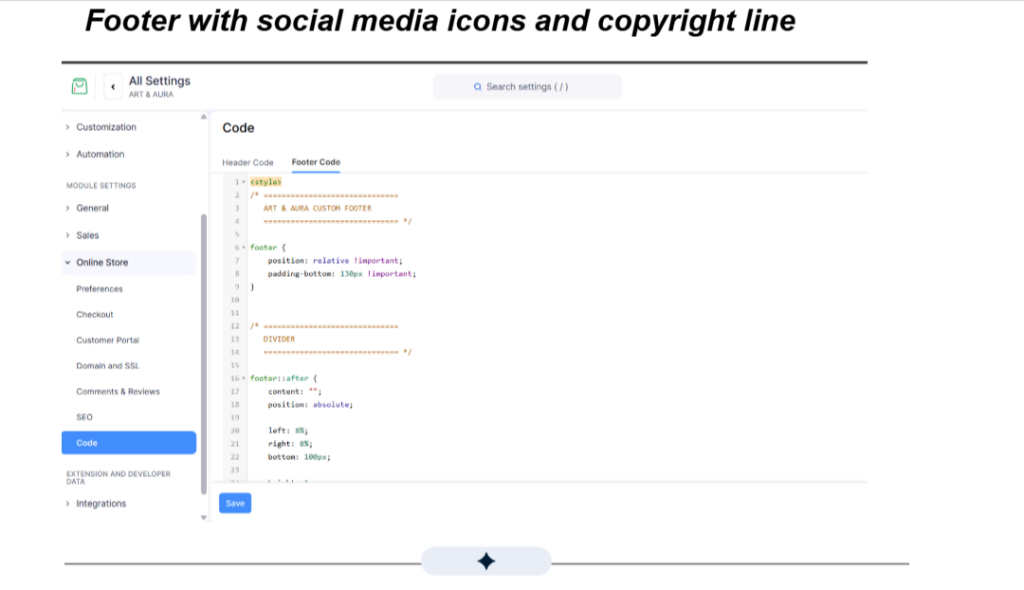
Step 15 — Footer & Social Media
Footer website-ന്റെ അവസാന ഭാഗമാണെങ്കിലും, ഒരു professional e-commerce website-ന്റെ പ്രധാന ഘടകങ്ങളിലൊന്നാണ്. Navigation links, social media icons, copyright information എന്നിവ clean ആയി organize ചെയ്യാൻ footer സഹായിക്കുന്നു.
ഓരോ business-നും പ്രത്യേകം code എഴുതേണ്ടതില്ല. താഴെ നൽകിയിരിക്കുന്ന AI prompt ഉപയോഗിച്ച് വിവിധ business websites-ന് അനുയോജ്യമായി customize ചെയ്യാവുന്ന clean, responsive footer code generate ചെയ്യാം. Business name, social media links, theme എന്നിവ ആവശ്യത്തിന് മാറ്റി സ്വന്തം store-ന് അനുയോജ്യമാക്കാം.
AI Prompt — Generate a Responsive E-commerce Footer
Prompt:”Create a clean, reusable and responsive footer enhancement for a Zoho Commerce e-commerce website using HTML/CSS and JavaScript.
Requirements:
- The code must be generic and reusable for different businesses and e-commerce websites. Do not use any specific brand name, business name, logo, or brand-specific class names.
- Keep the existing Zoho Commerce footer content and links intact. Do not replace or hide the default footer.
- Add clean styling for social media icons including:
– YouTube
- Display the social media icons as equal-sized circular buttons with:
– centered icons
– subtle borders
– transparent backgrounds
– consistent spacing
– simple hover effects
- Add a subtle horizontal divider above the bottom footer area.
- Add a copyright line at the bottom of the footer in this format:
© CURRENT YEAR YOUR BUSINESS NAME. All Rights Reserved.
- Generate the current year automatically using JavaScript so it does not need to be updated manually every year.
- Use “YOUR BUSINESS NAME” as a placeholder so the user can easily replace it with their own business name.
- Do not hard-code social media profile URLs. The styling should work with the social media links already configured in the store.
- Make the footer fully responsive:
– Desktop: clean spacing and aligned social icons
– Mobile: stacked/responsive layout with smaller circular social icons and readable copyright text
- Use a mobile breakpoint of 767px.
- Do not use fixed brand colors. Prefer currentColor, opacity, and neutral styling so the code can adapt to different website themes.
- Do not remove, rename, or interfere with existing footer navigation links.
- Avoid unnecessary duplicate CSS and JavaScript.
- Return one complete copy-paste-ready code block containing the required <style> and <script> code.
The final result should be professional, minimal, responsive, and suitable as a reusable footer enhancement for different Zoho Commerce stores.”
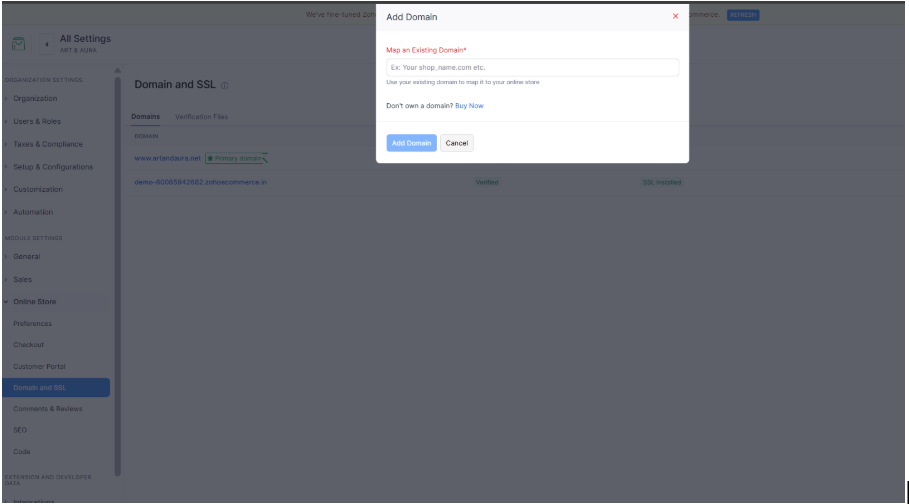
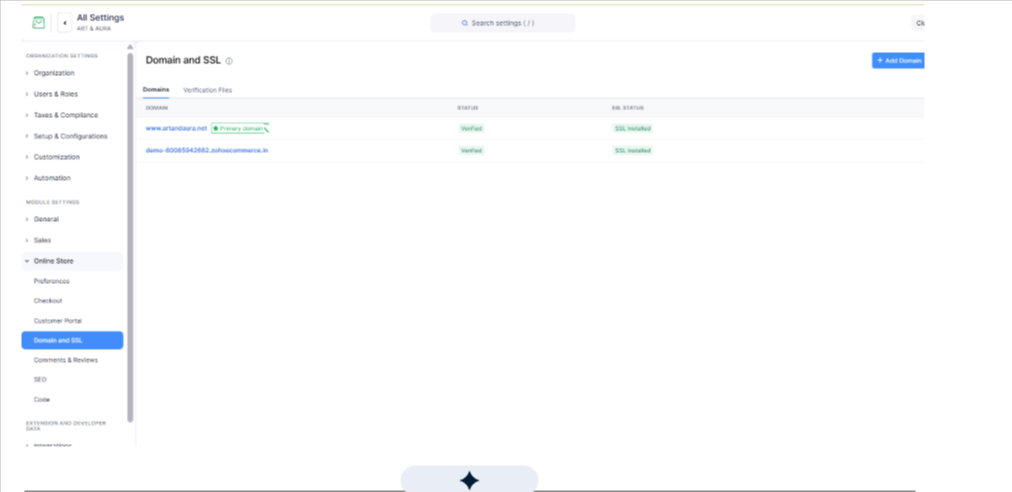
Step 16— Custom Domain Connect ചെയ്യുക
Website ready ആയ ശേഷം business-ന്റെ സ്വന്തം domain connect ചെയ്യാം.
ഉദാഹരണത്തിന്:
www.yourbusiness.com
Zoho-provided temporary/demo URL ഉപയോഗിച്ച് testing നടത്താം. Final launch-ന് branded custom domain ഉപയോഗിക്കുന്നത് കൂടുതൽ professional ആണ്.
Domain connect ചെയ്യുമ്പോൾ Zoho നൽകുന്ന DNS instructions domain provider-ൽ configure ചെയ്യണം.
Connecting a custom domain to the online store
Step 17 — Save, Publish & Share
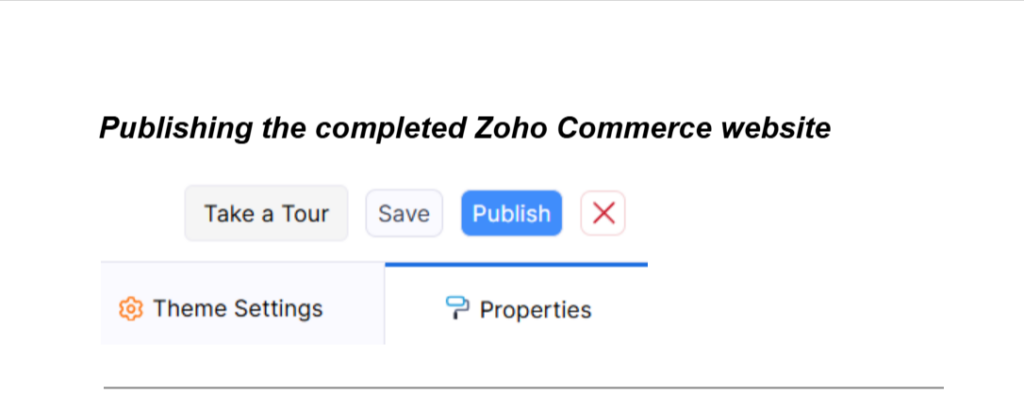
എല്ലാ sections-ഉം പരിശോധിച്ച ശേഷം changes Save ചെയ്യുക.
Final review കഴിഞ്ഞ് Publish ചെയ്യുക.
Published website തുറന്ന് desktop/mobile രണ്ടിലും അവസാനമായി പരിശോധിക്കുക. Products, navigation links, cart, contact form, social links എന്നിവ working ആണെന്ന് ഉറപ്പാക്കുക.
ശേഷം live website URL customers അല്ലെങ്കിൽ client-ന് share ചെയ്യാം.
Final Checklist
Website launch ചെയ്യുന്നതിന് മുമ്പ് താഴെയുള്ള കാര്യങ്ങൾ പരിശോധിക്കുക:
- Product images clear ആണോ?
- Prices correct ആണോ?
- Product descriptions complete ആണോ?
- Navigation links work ചെയ്യുന്നുണ്ടോ?
- Add to Cart / Cart work ചെയ്യുന്നുണ്ടോ?
- Contact details correct ആണോ?
- WhatsApp number correct country code സഹിതമാണോ?
- Instagram, Facebook, YouTube links work ചെയ്യുന്നുണ്ടോ?
- Mobile layout correct ആണോ?
- Footer complete ആണോ?
- SEO basics set ചെയ്തിട്ടുണ്ടോ?
- PageSpeed പരിശോധിച്ചോ?
- Domain ശരിയായി connected ആണോ?
Conclusion
Zoho Commerce ഉപയോഗിച്ച് e-commerce website build ചെയ്യുമ്പോൾ theme select ചെയ്ത് products upload ചെയ്യുന്നതിൽ മാത്രം process അവസാനിക്കുന്നില്ല.
ഒരു professional online store-ന് clear navigation, quality product presentation, brand storytelling, mobile responsiveness, contact options, social media integration, performance optimization, SEO, domain setup എന്നിവയും പ്രധാനമാണ്.
ഓരോ stage-ഉം systematically complete ചെയ്ത് desktop/mobile testing നടത്തിയ ശേഷം publish ചെയ്താൽ കൂടുതൽ polished, customer-friendly online store തയ്യാറാക്കാൻ കഴിയും.
നിങ്ങളുടെ ബിസിനസിന് ഒരു ഇ-കൊമേഴ്സ് വെബ്സൈറ്റ് വേണോ?
ജീക്ക്സ് ഗ്ലോബൽ ഡിജിറ്റലിൽ, ഡിസൈൻ മുതൽ സെറ്റപ്പും ലോഞ്ചും വരെ പൂർണ്ണമായ Zoho Commerce ഓൺലൈൻ സ്റ്റോർ ഞങ്ങൾ നിങ്ങൾക്കായി നിർമ്മിച്ചു നൽകുന്നു. നിങ്ങളുടെ 30 പ്രൊഡക്റ്റുകൾ വരെ ഞങ്ങൾ ചേർത്തു തരും, അതിനാൽ ആദ്യ ദിവസം മുതൽ തന്നെ നിങ്ങളുടെ സ്റ്റോർ ഓർഡറുകൾ സ്വീകരിക്കാൻ തയ്യാറായിരിക്കും. നിങ്ങളുടെ പ്രൊഡക്റ്റുകൾ തയ്യാറാണെങ്കിൽ, ബാക്കി കാര്യങ്ങളിൽ ഞങ്ങൾ നിങ്ങളെ സഹായിക്കും. ഇ-കൊമേഴ്സ് വെബ്സൈറ്റുകൾ നിർമ്മിക്കുന്നതിനുള്ള പരിശീലനവും ഞങ്ങൾ നൽകുന്നു, അതിലൂടെ നിങ്ങളുടെ സ്വന്തം ഓൺലൈൻ സ്റ്റോർ നിർമ്മിക്കാനും നിയന്ത്രിക്കാനും നിങ്ങൾക്ക് പഠിക്കാം. താഴെയുള്ള ബട്ടൺ ടാപ്പ് ചെയ്ത് വാട്സ്ആപ്പിൽ ഞങ്ങളുമായി ചാറ്റ് ചെയ്യൂ.
Chat On WhatsApp